How to disable Facebook Timeline and get the old profile back !


Hey ! Friends there you go i'm here with a very useful trick as you know everybody is board cause of boring timeline in facebook this trick will help you to recover your own old facebook profile.

This method for removing Timeline only applied to those who enabled it before its public release. Now that it's being rolled out to everyone, there is no way to remove Timeline and revert back to the old profile. Here's our roundup of ideas for making the most out of Facebook Timeline.

When Facebook Timeline was announced, it didn't take long for the Internet to figure out that even though the new profile design isn't yet available to the public, anyone could get it immediately with this little hack.
Today, over 1.5 million users have activated Timeline with this workaround, making the new profile visible to each of them and anyone else who has enabled it.
Eventually, Facebook will mandate Timeline for everyone, and when that happens, expect a lot of backlash. Many people, even those who opted in to the new design, seriously dislike it. They're calling it narcissistic, cluttered, and creepy.
If you concur, and you were one of those people who enabled Timeline, there's still a way to enjoy the old profile design (while it lasts.)

Step 1: Head to the Facebook Developers page where you originally created an app to enable Timeline. Click "Edit app."
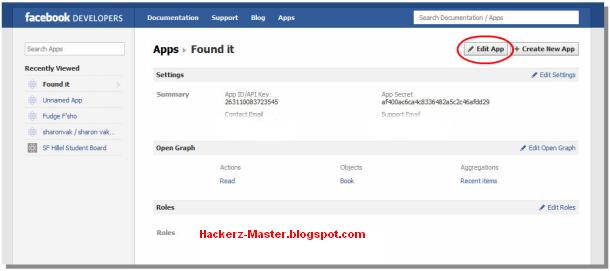
Step 2: The only way to remove Timeline is to delete the app. If you are an actual developer, you're out of luck. Otherwise, click "Delete app" in the left sidebar.


Once you confirm the app deletion, your Facebook Timeline will be disabled.

Thanks For Being Here Don't Hesitate To Ask Any Sort Of Question Please Like Our FB Page :) 
By Hackerz-Master


How to find lost files in your computer Drivers


Hi friends today i have very easy and useful tip how to find your lost file in your computer drivers.          Here I recommends you, try to search a file with its file extensions (for example for word file, type *.doc, Excel *.xls, Acrobat *.pdf, *.ppt and *.exe for executable files. If you don't know the name of file but know that it contains a string of text then try to search for files containing specific text, type the text you want to find from any file or folder. This is time taking process but creates very precise result. In Look in, click the drive, folder, or network you want to search. To save time, always select the specified drive or location instead of whole computer.

Click Start Button, point to Search,or go shortcut press start+f and then click For File or Folders, a Search Results dialog box will appear. In Search for files or folders named, type the file name or folder name you want to find in containing text.

To specify additional search criteria, click Search Options, and then click one or more of the following options to narrow your search:

Select Date to look for files that were created or modified on or between specific dates.
Select Type to look for files of a specific type, such as a text or WordPad document.
Select Size to look for files of a specific size.
Select Advanced Options to specify additional search criteria.

and there you go you will find your file if you have questions regarding to any thing  please comment below i will tryo to help you. (Hackerz-Master)

Get free facebook likes best way


Now Every One Want Facebook Fans Many peoples want fans for fun on page and many peoples want for their site Promoting 
And i found today i biggest Exchange Company which will give you hug of likes on Facebook and thousand of followers on Twitter…:)


Get Facebook Free Likes in some easy steps  


  • Click  Here and Signup for a account
  • Enter your username and email and password [Note your password must bi mix letter like example : (BSdhq45612)
  • After Signup you will get 100 free coins signup bonus.
  • Below Your Setting Click on FB icon
  • 1st Enter your Facebook Profile
  • Then Add your page
  • And Points choose 2 for per like cost
  • thats it now wait for a hour you will get 100 likes withing a hour

  • you can also refer you friends and can get more free facebook likes


    Feel free to ask any sort of question post your comments and do find us on Facebook thanks  :) 


How To Protect yourself and your friends from facebook new scam dirty wall video posts


Hi Friends as everybody knows hackerz are busy in Facebook these days harming people by putting some dirty wall post videos without you knowing  also when you click on those videos and that's why that video spread in whole Facebook and everyone effect to stay safe these kind of videos we got solution


This is the pictures how the scam looks like


Solution: 


How to Protect your Self From this Scam?

Here is a Antivirus Which will help you to protect your self from hackers

Avg is the best one Antivirus which can protect you from this scam.

Avg will block the scam and harm links.

if you click on it wrongly clear cookies refresh system.
Always protection on your antivirus

Download Avg Antivirus here 2012 cracked Please Follow Our Web Page And Site To Stay Updated With Us Thanks


How to Change Windows 7 or Xp Password without Knowing Current Password Easy


Method 1


  • Go to Control Panel and click on the Administrative Tools.
  • Under this section double click on Computer Management.
  •  Select  System Tools from right window pane.


  • Under this, just double click on Local Users and Groups and then on Users
  • Now you will see all the login accounts of your computer. Right click on any the account whose password you want to change and then click on Set Password.


Now enter your Set Password/New Password  and click on OK button.


That’s it! your windows 7 or XP password is changed without knowing current password. The only limitation of this method is that your current  account should  have Administrative privileges Otherwise it will not work properly .


Method 2

If you love to be work on Command Line then this method is for you.
  • Open command prompt by typing with administrative privileges .( Type CMD in start, right click on it and select Run as Administrative )
151 How to Change Windows 7 Password without Knowing Current Password
  • In the CMD window  type the following command and  hit Enter
net user Account Name Your New Password
In this command replace Account Name by the account name (Account Name is case sensitive) whose password you want to change and replace Your New Password by the password that you want to set.
161 How to Change Windows 7 Password without Knowing Current Password
  • Now if everything goes alright  you will see “The command completed successfully” on your screen, now type exit command and hit Enter
This is the easiest Way And Very Useful  This will reset your current windows password Don't Hesitate  To Comment Feel Free  .


12 Useful And Handy Shortcuts


These are some useful shortcuts for your computer save your time work faster and enjoy

1. Ctrl + C – Copy

Who can live without this shortcut? We are copying stuffs all the time.
And this keyboard shortcut is so much easier and faster than Right Click >> Copy.

2. Ctrl + V – Paste

If you copy, you need to paste. So instead of Right Click >> Paste, just hit Ctrl + V.

3. Ctrl + Z – Undo

Oops! You’ve just deleted a piece of text! How to make text magically reappear on screen? The magic words are: Ctrl + Z.

4. Alt, F, W, F – Create new folder in windows explorer

I still wonder why there is still no shortcut to create a new folder. So, this is actually not a keyboard shortcut, but a trick shortcut.
Alt – goes to the menu
– Selects “File” beside “Edit”
W – Selects “New”
F – Selects “Folder”.

5. Windows Logo + E – Open computer

You know that windows logo button between Ctrl and Alt on the bottom left of the keyboard? If you press Windows Logo + E, it will open the computer.
No, not automatically disassemble the computer and unscrew it, :P but open the window where you will see the disk drives and the CD Rom.

6. Windows Logo + D – Show desktop; minimize all windows

You know when you have so many windows open, and you need to go to the desktop to open a program?
You don’t need to minimize every single window one by one again. Just press Windows Logo + D and you will arrive on the desktop.

7. Tab – Go to next text area

When filling forms on the web, especially username and password forms, this goes extremely handy.
When logging in, after typing the username, just hit “Tab” and tada! – you are at the password form without touching the mouse!

8. Typing name of file you’re looking for – Locating file

Lets say you are in a folder called ‘Pictures’ and you want to locate a file photo called “mejumping.jpg”, just type “mejum…”. Usually you don’t need to type the file’s entire name – just some of its first letters will do.

9. Ctrl + Click – Individually selecting multiple files

Lets say you are on a folder with lots of photos. You only want to select your good photos. How? Click a good photo. Then, Ctrl + click another good photo. Next, Ctrl + click another good photo!
See? It doesn’t unselect the previous files but adds the next files you have clicked to the selection!

10. Shift + Click – Select files from one end to another

You are on a photo page.. again. And now, you want to select photos from “PICT1209” to “PICT1281”. How? Click “PICT1209”. Then Shift + Click “PICT1281”.
Tada! You have selected all the photos between “PICT1209” and “PICT1281”!

11. Alt + Double click – View file properties

If you want to view the properties of a file, don’t need to Right Click >> Properties. Just hit Alt + Double Click and the properties will appear right before your eyes!

12. Windows Logo + 1, 2, or 3…–Launch quick launch items

If you have items in your Quick Launch (the part on the right of the Start button), here is a very nice way to quickly launch the quick launch.
If you want to launch quick launch item #1, hit Win + 1. Item #2? Win + 2. And so on and on and on… until item number 9.


How To Fast Shut Down Windows With A Double Click / Win Xp


Hey! how are you? here is the another cool windows xp trick. Is your computer shutdown slowly ? do not worry. you are come to right place :D try this... please add your comments here.. thank you!!! (Hackerz-Master)

Follow This Step By Step:


1.Right click a blank area on your desktop
2.Click New.
3. Click Shortcut to create a shortcut on your desktop.
4. The Create Shortcut dialog - To have Windows shut down immediately when
5.You double click the shortcut, and type shutdown -s -t 00

NOTE: To Have Windows count down for a specific number of
seconds before shutting down, type the number of seconds
instead of 00 in step 4.

6 .Click Next to continue
7. Type the name you want the shortcut to display on your desktop.
8. Click Finish to create the shortcut

You are done. By Hackerz-Master 

Picture From http://www.microsoft.com